
Google Ads Offline Conversions: How to Teach Google Which Leads Actually Closed

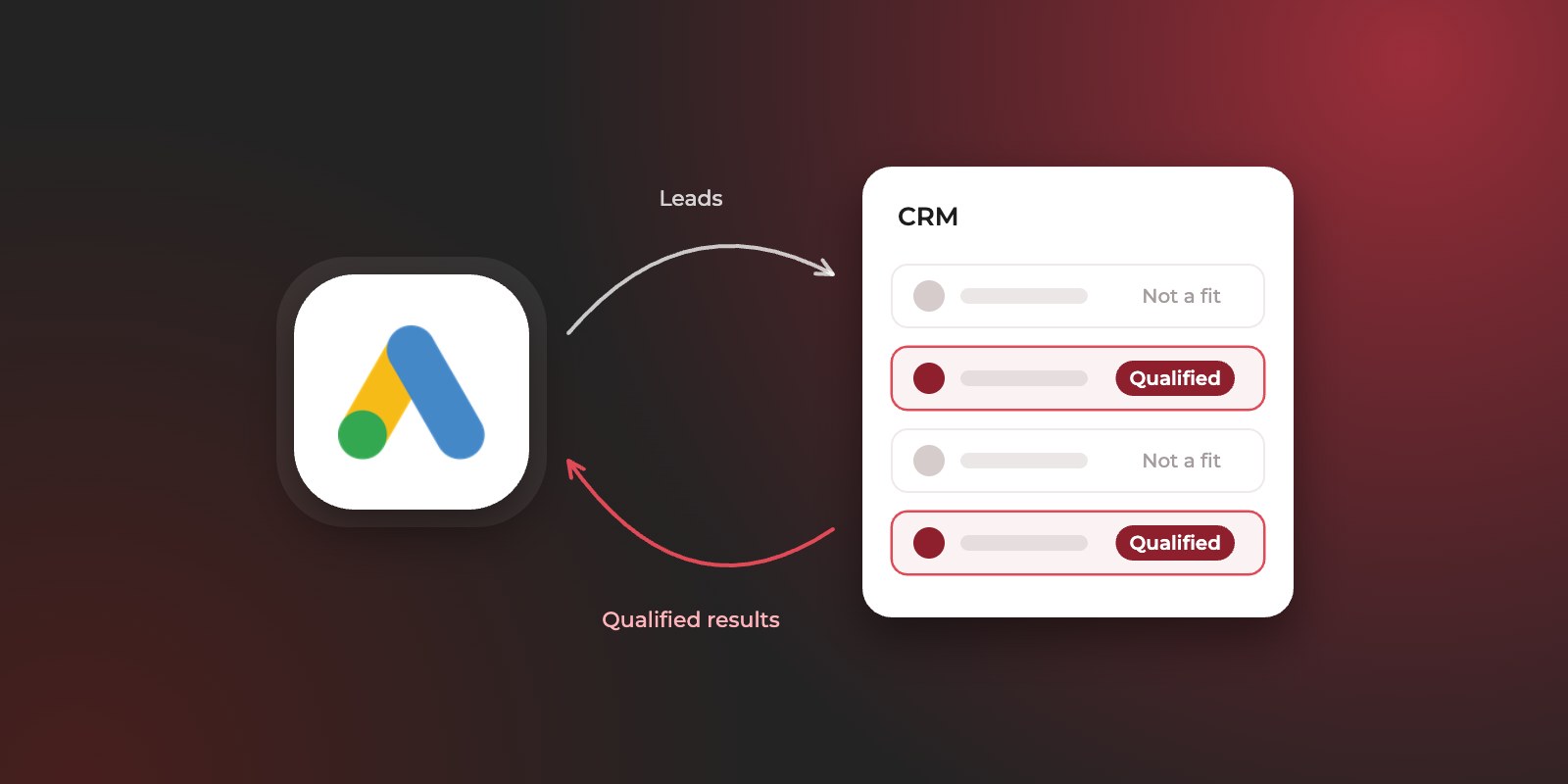
Google Ads offline conversions let you tell Google which of your leads turned into qualified leads or customers after they left your website. Once Google knows that, its bidding stops optimizing for form fills and starts looking for people who resemble the leads your sales team actually closes.
Without it, Google only sees the form submission. To the algorithm, a serious buyer and someone who mistyped their phone number look exactly the same, so it keeps finding more of whichever is cheaper to reach.
This guide explains how offline conversions work, which of Google’s methods to use in 2026, how to set them up, and the mistakes we fix most often when we take over Google Ads accounts. It’s written for businesses that generate leads online and close them by phone, WhatsApp or in meetings.
What are offline conversions in Google Ads?
An offline conversion is a result that happens outside your website after someone clicks your ad, such as a lead your sales team marks as qualified, a meeting, or a signed contract. You record it in your CRM, then send it back to Google Ads so it’s credited to the campaign, ad group and keyword that brought the lead in. Google’s help center calls this offline conversion import.
Why do offline conversions matter for lead generation?
They change two things.
- What you can see. Reports show which keywords and campaigns produce qualified leads and customers, not just form fills. A keyword with a high cost per lead can turn out to be your cheapest source of customers, and the reverse.
- What Google optimizes for. Smart bidding strategies optimize toward the conversions you mark as primary. When that’s a qualified lead instead of a form fill, Google adjusts bids toward the searches and people most likely to qualify.
In our experience, the second is where most of the improvement comes from, and it’s why we set up offline conversions on every lead generation account we manage. For the reasoning behind measuring qualified leads rather than all leads, see what counts as a qualified lead.
How does the data get back to Google?
It follows the lead from the ad click to your CRM and back. Each step has to pass the right details to the next, which is why a gap anywhere breaks the whole chain.
- 01Ad clickGoogle adds a click ID (GCLID) to the URL
- 02Form submittedThe tag hashes email and phone; a hidden field keeps the GCLID
- 03Lead in your CRMGCLID, contact details and time stored
- 04Sales qualifies itStage and date recorded in the CRM
- 05Automatic uploadData Manager, Zapier or the API, daily
- 06Google Ads learnsMatches the result to the click and adjusts bids
Steps 1 to 3 happen automatically when the lead comes in. Step 4 is your sales team’s job. Steps 5 and 6 run in the background once they’re set up.
Which offline conversion method should you use?
For most new setups, use enhanced conversions for leads, and include the Google click ID (GCLID) whenever you have it. That’s Google’s own recommendation, and it combines the two methods rather than choosing between them.
| Method | How Google matches the result to a click | What you need | Google’s position (November 2026) |
|---|---|---|---|
| Enhanced conversions for leads | Hashed contact details, such as email or phone number, captured by the Google tag when the lead submits your form | The Google tag or Google Tag Manager on your site, and the same contact details stored in your CRM | Recommended for new setups |
| GCLID import | The unique click ID Google adds to every ad click, saved with the lead | Auto-tagging on, a hidden form field that captures the GCLID, and a CRM field to store it | Still supported; Google recommends upgrading to enhanced conversions for leads and including GCLIDs whenever possible |
| Call conversion import | Calls that started from your ads | Call tracking set up for your ads | Separate method for phone-led sales |
According to Google, enhanced conversions for leads is more durable and more accurate than GCLID import alone, and it can credit conversions across devices. Including GCLIDs as well helps tie each result to the exact ad click. If you aren’t using a tag to collect contact details, GCLIDs are required. Enhanced conversions for leads also helps when the click ID is lost along the way, for example when a browser’s privacy features remove it from the URL.
How do you send the data to Google?
You have three main routes, depending on your CRM and technical resources:
- Data Manager, Google’s tool inside Google Ads for bringing in first-party data.
- The API. Since 15 June 2026, Google has been moving offline conversion and enhanced conversions for leads uploads to the Data Manager API and closing the older Google Ads API route to most integrations. If a developer or tool set up your uploads before that date, check it has been updated.
- Zapier, which connects many CRMs to Google Ads without code.
One-off file uploads still exist, but Google now labels them as legacy. They also depend on someone remembering to upload, which is exactly when the data goes stale.
How do you set up offline conversions in Google Ads?
Setup takes seven steps: agree the stages, create conversion actions, capture contact details and click IDs, store them in your CRM, connect the upload, and check the results. The technical work is usually quick. Agreeing what counts as a qualified lead with your sales team often takes longer.
- Agree which CRM stages count. Pick the moments you want Google to learn from, usually a qualified lead and a closed deal. Each needs a clear, consistent definition your sales team applies to every lead.
- Create a conversion action for each stage. Name them plainly, such as “Qualified lead” and “Closed deal”. Set the conversion window to match your sales cycle: it defaults to 30 days and can go up to 90 days. After creating a new action, Google advises waiting 4 to 6 hours before the first upload.
- Turn on enhanced conversions for leads. Make sure the Google tag captures the email address or phone number your form collects. From April 2026, Google has been combining enhanced conversions for web and for leads into a single setting, and existing accounts are moved over automatically.
- Capture the GCLID. With auto-tagging on, Google adds a click ID to every ad click’s landing page URL. Add a hidden field to your form that reads it, and check that it survives redirects, multi-step forms and thank-you pages. If visitors often browse other pages before enquiring, store the GCLID in a first-party cookie, which Google Tag Manager can do, and fill the hidden field from it.
- Store everything in your CRM. Each lead record needs the GCLID, the email and phone number, when the lead came in, and when it reached each stage.
- Connect the upload. Use Data Manager, Zapier or the API to send results to Google automatically, at least daily. Google recommends including an extra day’s data in each upload. Duplicates are ignored, so overlapping uploads are safe.
- Check the results. Uploaded conversions can take 24 to 48 hours to appear. Once they do, confirm the numbers roughly match the qualified leads in your CRM for the same period.
Which lead stages should you import?
Import two or three stages, not every status in your CRM. Each one should mark real progress toward a sale and be recorded the same way every time.
| Stage | What it means | How to use it in Google Ads |
|---|---|---|
| Lead (form fill or call) | Someone enquired | Keep tracking it with the Google tag. Make it secondary once you have enough qualified lead data |
| Qualified lead | Sales confirmed the lead fits and is interested | Usually the best primary conversion for bidding: frequent enough to learn from, close enough to revenue to matter |
| Meeting or proposal | Optional middle stage for long sales cycles | Secondary, for reporting |
| Closed deal | The lead became a customer | Primary if you close enough deals each month to bid on; otherwise secondary, for reporting |
Should you give each stage a value?
Yes, if your deals vary in size or you want to use value-based bidding. A simple way to value a qualified lead is your average deal value multiplied by your close rate on qualified leads.
For example, with round numbers: if an average deal is worth AED 40,000 and sales closes 20% of qualified leads, each qualified lead is worth about AED 8,000 to the business. For closed deals, send the actual deal value. Values don’t need to be exact. They need to rank leads in the right order, so Google learns that a qualified enterprise lead is worth more than a qualified small one.
How do you bid on qualified leads?
Make the qualified lead conversion action primary, so smart bidding optimizes toward it, and keep form fills as secondary for reporting. Do it in stages rather than overnight.
- Import first, switch later. Start uploading qualified leads as a secondary action while bidding still runs on form fills. This lets you check the data is reliable before Google depends on it.
- Compare before you switch. Once qualified leads arrive consistently, look at which campaigns and keywords produce them. In our experience, this is often the most useful report the account has produced.
- Switch the primary goal. Make the qualified lead action primary and form fills secondary. Expect a learning period where performance fluctuates.
- Reset your targets. If you use a target cost per acquisition, it was set for form fills. A qualified lead costs more than a form fill, so raise the target to match your actual cost per qualified lead. If you leave the old target, Google will hold back spend trying to reach a number that’s no longer realistic.
What if you only get a few qualified leads a month?
Then Google may not have enough data to bid on qualified leads alone. Keep form fills as the primary goal for now, and use the qualified lead data to guide your own decisions: which keywords to pause, which campaigns get more budget, and which searches to exclude. That still captures much of the benefit, and you can switch the goal once volume grows.
What are the most common offline conversion mistakes?
In our experience, broken setups usually fail quietly: uploads run, but some or all of the data never matches a click. These are the problems we find most often.
- The click ID gets lost before the CRM. The GCLID is on the landing page, but a redirect, a multi-step form or the automation that copies form entries into the CRM drops it. Automations can also stop silently when they hit a task limit or a field that’s too long.
- A tracking template sends placeholder text. Custom tracking templates and URL suffixes only work with placeholders Google supports. An unsupported one, such as
{campaignname}, arrives in your CRM as literal text instead of a campaign name, and source reporting quietly breaks. - WhatsApp and phone leads have no click ID. Someone who taps a WhatsApp button or calls never fills in the form, so nothing captures the GCLID. Record their phone number in the CRM, use call conversion import for calls from ads, and accept that some of these leads won’t match.
- Stages are updated late. If a lead is marked qualified weeks after it came in, it may fall outside the conversion window and never count. Ask sales to update stages within days, and set the window to cover your sales cycle.
- Different salespeople use stages differently. One marks a lead qualified after a first call, another only after a meeting. Google learns from both as if they meant the same thing. A short written definition fixes this.
- Two stages compete for the same lead. If both “qualified lead” and “closed deal” are primary without values, the same person can count twice and skew bidding. Keep one primary, or give each stage a value.
- The target stays the same after switching goals. A target cost per acquisition set for form fills will hold back spend once you bid on qualified leads, because a qualified lead costs more than a form fill. Raise the target to your actual cost per qualified lead.
If you’re not sure whether your own setup has any of these, our guide to why ad leads aren’t converting includes a 30-minute checklist that starts with tracking.
Frequently asked questions
Do I need a developer to set up offline conversions?
Not always. If your site uses Google Tag Manager and your CRM connects to Zapier or Data Manager, much of the setup can be done without code. You’ll want a developer for custom-built forms, unusual redirects, or a direct API connection.
Will it work with my CRM?
It works with any CRM that can store each lead’s GCLID and contact details, record when the lead changes stage, and either connect to Zapier or Data Manager or export that data. Many CRMs can.
How long before bidding improves?
It depends on how many qualified leads you upload. Google needs a steady flow of conversions to learn from, and performance usually fluctuates during the learning period after you change the primary goal. Judge it on cost per qualified lead over several weeks, not day by day.
Is enhanced conversions for leads privacy-safe?
Contact details are hashed before they’re sent, so Google receives coded values rather than readable emails or phone numbers, and matches them against its own hashed data. Google also asks advertisers to tell users what data they collect and to get consent where the law requires it, so check that your privacy policy covers it.
Can I do the same for Meta and LinkedIn?
Yes. Meta and LinkedIn both accept results from your CRM through their own Conversions APIs (Meta’s documentation, LinkedIn’s documentation). The principle is the same: tell the platform which leads qualified, so it finds more like them. See how we use this on Meta Ads and LinkedIn Ads.
Want it set up properly?
At FlyRobin, every lead generation account we manage has automatic CRM feedback into Google Ads, Meta and LinkedIn, with live CRM quality and UTM data, so campaigns optimize for the leads your sales team can close. See how we run Google Ads, or get in touch and we’ll look at your current setup with you.
Get in touch